
In-App Social Proof: Where to Place Real Conversations
The conversations users are already having are the most credible content in an app, yet most users never go looking for them. This playbook covers what each type of page needs from in-app social proof, and how to configure and place a Discovery Widget to deliver it.
Every active app runs on two layers. The first is the product itself: the homepage, the product listings, the category pages, the program schedules. The second is the activity: users posting, replying, reacting, and sharing what worked for them. For most users, those two layers never meet. The activity sits in a feed or community space behind a tap many users never make, while the pages they do visit carry none of it.
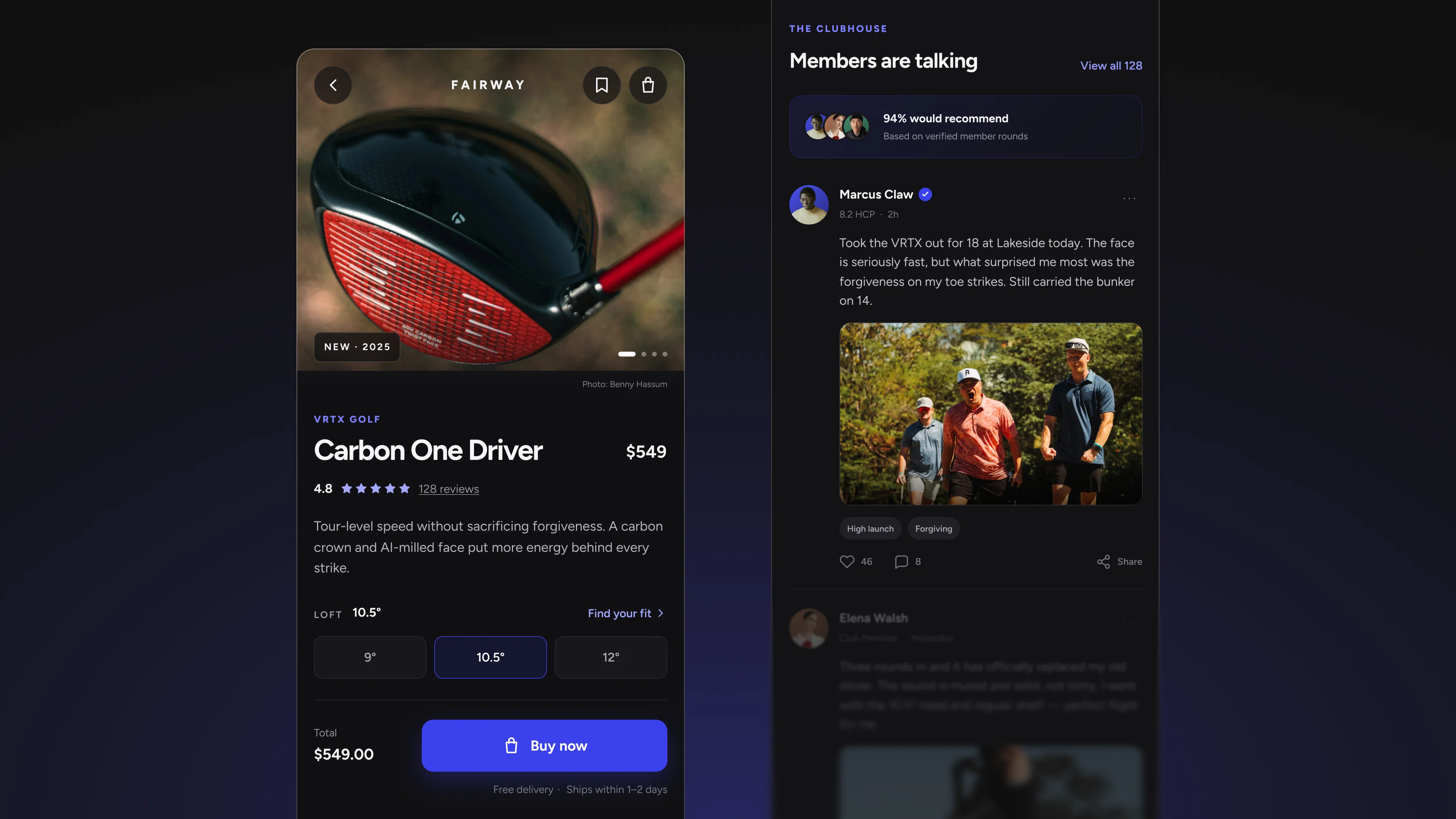
In-app social proof brings the second layer onto the first. It places real posts, with real replies and reactions, on the pages where users are already paying attention. The mechanism is the same on every page: a Topic defines which posts qualify, and one embed snippet places them. What changes is the goal. A homepage, a product page, and a class schedule each need something different from the same conversations, and the placement decisions below are where most of the value is decided.
Homepage: show the app is active from the first screen
What this page needs. A first-session user has no evidence yet that anyone else is here. Until they see activity, the app looks like a catalogue. The homepage widget's job is to show, within the first screen, that people are already talking about the things this app is for.
How to deliver it. Use a broad Topic with open author and post type filters, so the widget draws from the widest pool and the ranking surfaces the most active posts. Leave sentiment open unless there is a specific reason not to, since an honest mix of conversation reads as real. Point each card's tap to the full conversation rather than a generic community landing page, so the tap delivers exactly what the card promised.
Product pages: put real experiences next to the product
What this page needs. A user looking at a product wants to know how it holds up for people like them. A conversation that happened on its own carries different weight from a star rating or a review someone was asked to write. It shows the product in real use, discussed in the user's own language.
How to deliver it. Scope the Topic tightly to that product area, so every post is clearly about what the user is looking at. Cards show the post itself rather than product tags, so relevance comes from the Topic's scope and from the page around the widget. This is the surface where excluding negative sentiment through AI Insights is easiest to justify, because the page's purpose is to help a user understand the product. The widget works alongside ratings and product details rather than in place of them, and success here looks like product engagement: taps into conversations, time spent with the product, and interest that carries into the next step you design.
Category pages: make browsing feel populated
What this page needs. A user browsing a fitness, travel, or lifestyle category sees a grid of listings. Posts from people who share that interest turn the page from an inventory into a place where something is happening.
How to deliver it. Give each category its own Topic rather than sharing one across all of them. Topics are configured independently, and this is where that matters most: a running category and a yoga category should not surface the same threads. For visual categories, favour post types with media so the cards hold their own next to product imagery.
Pages users return to: give them a reason to look again
What this page needs. Returning users visit the same few pages repeatedly, whether that is a home screen, a schedule, or a progress view. What those pages lack is a signal that something has changed since the last visit.
How to deliver it. Place a widget on the pages that sit inside a user's routine. The selection refreshes daily and freshness is part of the ranking, so a regular visitor sees current activity rather than the same posts every time. Treat this as a lightweight re-engagement surface that points back into the feed or community space, rather than a replacement for either.
Brand-curated surfaces: blend official voices with organic activity
What this page needs. Some pages call for tighter control: a launch page, a campaign page, or a high-visibility product page where the brand wants its own voice present alongside users.
How to deliver it. Restrict the Topic's author type or role to verified brand accounts or specific roles, such as ambassadors or coaches. Two tradeoffs come with this. A narrower pool has to clear the minimum of three eligible posts, or the widget will not render. And because ranking is fully automatic, control comes from who qualifies for the Topic, not from pinning a particular post to the top.
Decide where every tap goes
The click destination is set by the brand, and it is the decision that turns attention into participation. The same card can lead somewhere very different depending on the page's goal.
- To the full thread: best for homepage and category surfaces, where the goal is to pull a user into the conversation.
- To the community space: best when the page's aim is ongoing membership rather than a single conversation.
- To a related product or program page: best for brand-curated surfaces, where the post is a bridge to something specific.
Whichever destination you choose, the landing screen should continue the story the card started. A tap on a post about a training plan that opens a generic home screen spends the user's attention without giving anything back.
Building on your own front end, and measuring what works
Teams rendering their own front end can pull ranked posts through the API, up to 100 per Topic, with the same ranking and safety gates behind them. That allows the posts to be designed into existing components while the Topic logic stays in the console.
The API is also where measurement lives in this release, since impressions and clicks are tracked through it rather than in a dashboard. Decide before launch which events to log for each surface: impressions, card taps, and the downstream actions you care about, such as replies or community joins. Then compare surfaces against each other. Results depend on how active the network is, how the page is designed, and where each tap leads, so a product page and a homepage will not behave the same way, and the comparison tells you where to invest next.
Choosing your first placement
Start with the page where the gap between activity and visibility is widest: usually the homepage for apps with many new users, or the highest-traffic product page for apps where users arrive already evaluating something. Build one Topic for it, choose a click destination that continues the conversation, and log impressions and taps from day one. After a few weeks of daily refreshes, the data will show which surface to add next.
The Discovery Widget is available now for native apps built on social.plus UIKit v4. Visit the documentation to place your first widget, or get in touch with our team for a walkthrough.