
How to Set Up Discovery Widget Topics for Every Page
A Discovery Widget is only as useful as the Topic behind it. This guide walks through the decisions that shape a Topic, from filters and sentiment to exclusions and the three-post threshold, so every page shows conversations that fit what users came there to do.
Once a Topic is live, any page in the app can carry real conversations. A homepage can show the discussions users are most active in today. A product page can show users talking about that category in their own words. A category page can feel populated by people rather than listings. The embed snippet is the simple part of that. The Topic is what decides whether the posts that appear actually belong on the page.
Most teams configure their first Topic, watch the posts render, and reuse it everywhere. The result works technically but falls flat in context: the same workout thread on the homepage, the gear page, and the coaching page. Getting discovery widget topics right means treating each Topic as an editorial brief for one surface, then using the filters to carry out that brief.
Start with the page, then choose the filters
Before opening the console, write one sentence describing what a user on that page is trying to do. That sentence is more useful than any filter setting, because it tells you what the widget needs to prove.
- Homepage: A new or returning user is deciding whether the app is worth exploring. The Topic should favour broad, active discussion.
- Product or category page: A user is evaluating something specific. The Topic should favour posts about that product area, from voices the user will trust.
- Program or class page: A user is deciding whether to join. The Topic should favour posts from people already taking part.
That sentence becomes the test for every choice that follows. If a filter setting does not serve it, leave the filter open.
What each filter changes on the page
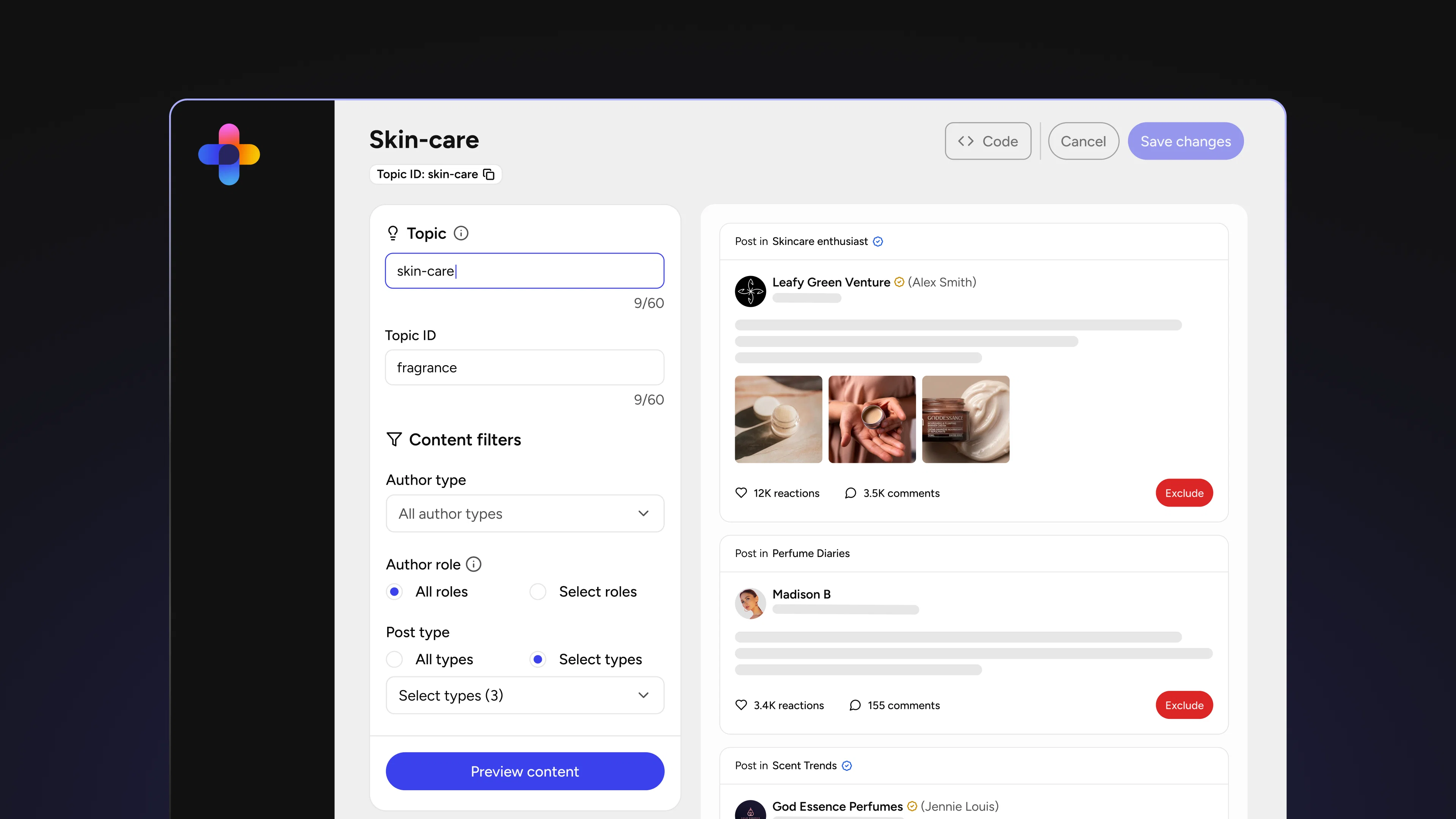
A Topic narrows the eligible pool of posts by author type, role, and post type. Each filter answers a different question about what the page needs.
Author type and role decide whose voice the page carries. Leaving them open produces a mix of users and brand accounts, which reads as organic activity. Restricting them to verified brand accounts or specific roles, such as coaches, hosts, or ambassadors, produces something closer to a curated surface. Neither approach is better in general. A homepage usually benefits from breadth, while a program page can be stronger when the posts come from the people running the program.
Post type decides the format of what appears. Every card shows a post snippet with media, reply and reaction counts, and activity status, so on visual pages such as products, destinations, or workouts, posts with media give each card more to show. On pages led by discussion, text posts with active replies do the work.
Treat manual exclusion as a permanent editorial call
During Topic setup, specific posts can be excluded by hand. That exclusion applies across every Topic, and it cannot be reversed. A post excluded while tuning the homepage Topic will also stay out of the product page Topic built next month.
This makes manual exclusion the right tool for posts that should never appear on any surface: an off-brand joke, an expired promotion, a thread about a discontinued product. It is the wrong tool for a post that is simply a poor fit for one page. For that, tighten the Topic's filters so the post falls outside that Topic's pool while staying eligible everywhere else.
How ranking and daily refresh handle the rest
Within a Topic's pool, posts are ranked by relevance first, then by engagement and freshness, and the selection refreshes daily. Ranking is fully automatic, with no option to pin a specific post into position. That changes where editorial effort goes. Rather than choosing individual posts, you shape the pool, and the ranking surfaces the strongest conversations inside it each day.
This is also why a well-scoped Topic stays useful for months with little attention. As users keep posting, the page reflects current activity instead of a snapshot someone selected once and forgot to update.
Where to start
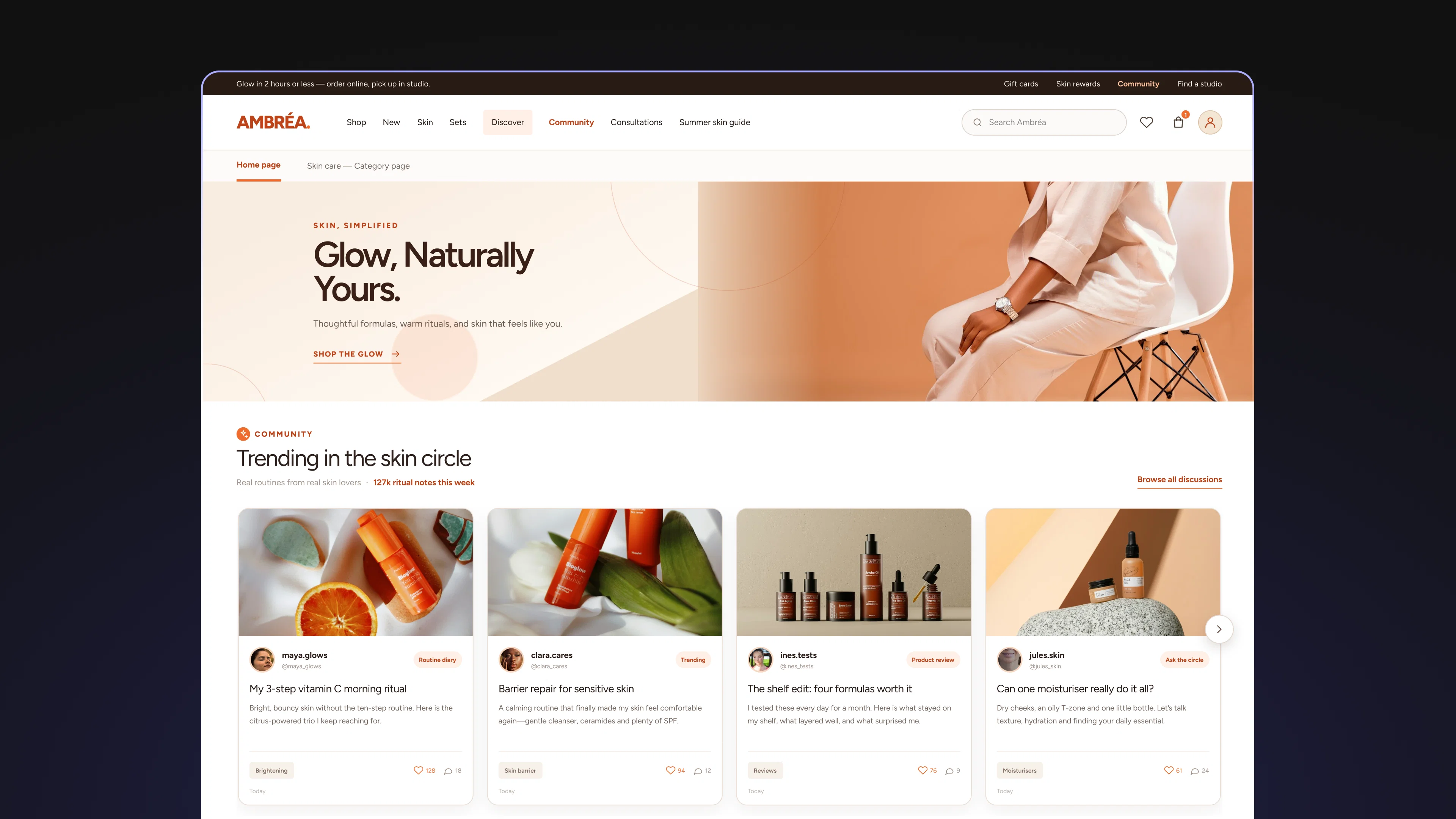
Pick the page where users most need to see that others are active, usually the homepage or the highest-traffic product page, and build one Topic for it using the one-sentence test. Keep the filters wide enough to clear three posts, save manual exclusion for posts that should never appear anywhere, and let a few daily refreshes run before adjusting anything. Once that first surface looks right, the second Topic takes a fraction of the time, because the decisions are already familiar.
Discovery Widget Topics are configured by Admins and Super Admins in the social.plus console. Visit the documentation to set up your first Topic, or get in touch with our team for a walkthrough.