
How to Build social.plus Features Faster: A Practical Guide to Working With the MCP Server Main
When the MCP server is connected, the documentation layer your AI tool works from becomes live and current. That changes what the AI can do when you are building, debugging, or scoping a feature: not by removing the work, but by grounding it in accurate reference rather than training data that may be out of date.
When you connect the MCP server to your AI tool, the practical effect is this: instead of generating plausible-looking SDK code from training data, your AI can scaffold features against the current documentation. The methods are accurate. The parameter names are correct. The patterns reflect how the platform actually works today, not how it worked when the model was last trained.
That shift is most visible when you are building something new. It also shows up in debugging, in scoping work before committing to it, and in the rhythm of working through an integration without constantly switching tabs to verify whether what the AI suggested is actually right.
What Your AI Tool Can Do Once the MCP Server Is Connected
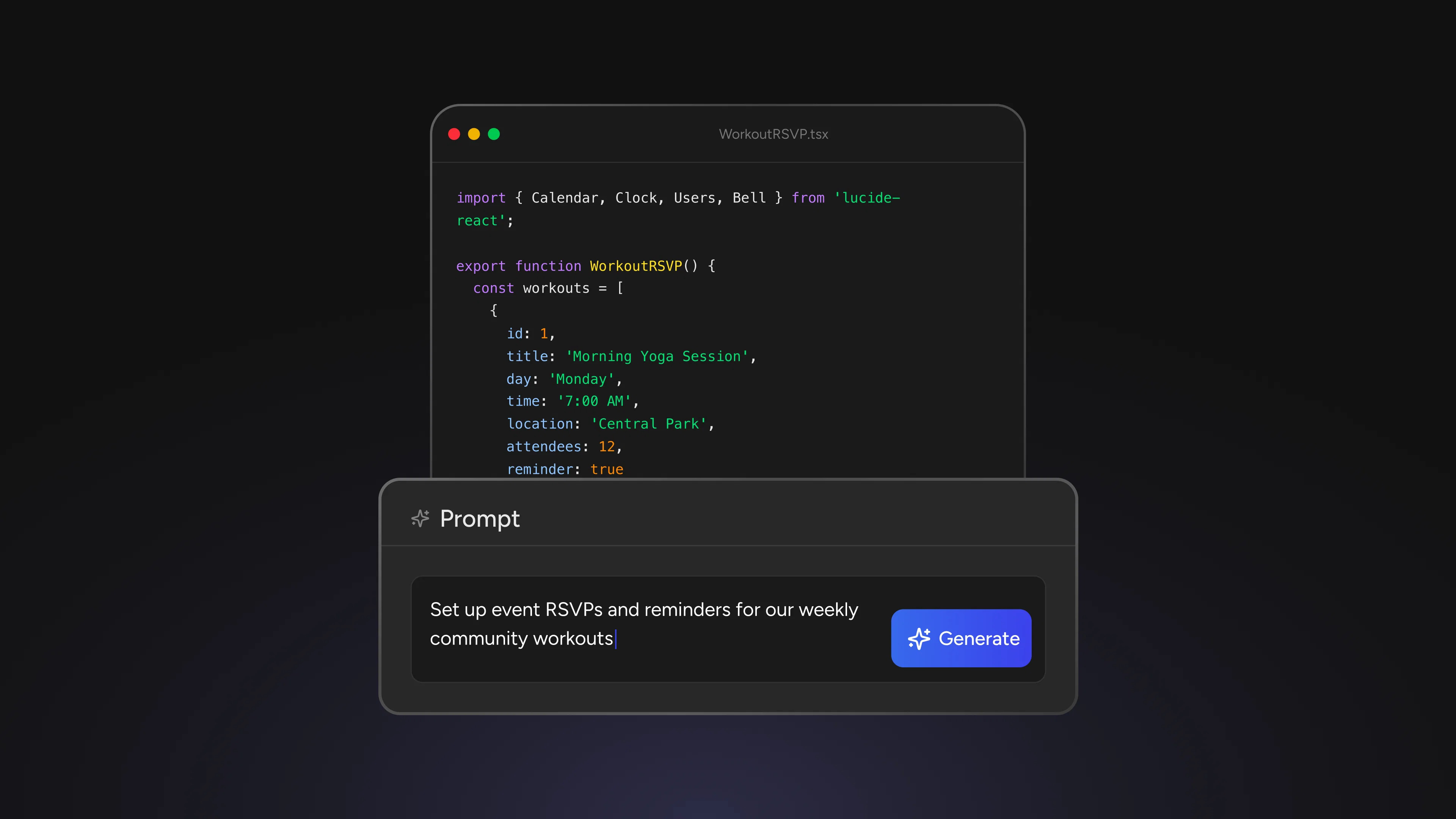
In agent mode, whether in Cursor, VS Code Copilot, or Claude Desktop, the MCP tools load automatically when you start a session. Your AI does not wait for you to invoke them. When you describe a feature and the agent determines that documentation context is relevant, it pulls from the MCP reference on its own and uses that to shape the response.
This is the key difference from working without the connection. The AI is not generating from memory. It is working against a live documentation source, which means the code it scaffolds, the patterns it suggests, and the methods it references are grounded in what the platform currently supports. For an integration where the cost of a wrong assumption is a debugging session, this matters.
The scope of what the MCP server covers spans the full stack: Social (feeds, groups, stories, profiles), Chat (1-on-1, group messaging, live chat), Video (live streaming, live events), and Analytics. Any feature you are building that touches those capabilities has relevant documentation available to your AI through the connection.
Scaffolding Features in Natural Language
The prompts that produce the most useful output are not SDK queries. They are descriptions of the feature you are building, written in the same way you would describe it to a teammate. The agent handles the documentation lookup.
For a fitness app adding group workout sessions: "I'm building a live workout session where members can RSVP ahead of time, join a live stream, and chat with each other during it. Set this up." The agent connects to the MCP reference, identifies the relevant SDK components across Events, Video, and Chat, and returns a scaffolded implementation that ties them together. You are describing the feature; the AI is doing the SDK mapping.
The description benefits from specificity in a few areas. Naming the SDK environment (iOS, Android, React Native, Web) matters because the implementations differ. Describing what the user does rather than what the system should do tends to produce better-structured results. Including what you have already set up prevents the AI from regenerating code you already have.
None of this requires learning to prompt in a particular syntax. It requires describing your feature clearly, which is the same work you would do before writing the code yourself.
Targeting a Specific SDK Behaviour Before You Build
There are moments in an integration when you want to understand how a specific capability works before committing to the implementation. A product manager describes a feature and engineering needs to evaluate what it involves. You are choosing between two patterns and want to understand the tradeoffs. You have not built this part of the platform before and want to understand the surface before touching it.
In these cases, a more targeted question works well: "What does the SDK support for event reminders and how do they get delivered to users?" or "What is the difference between group chat and a group feed, and when would I use each?" The MCP server gives the agent what it needs to return an accurate, scoped answer rather than a generic one. The evaluation happens in the same conversation where the build happens, without breaking to search documentation separately.
This mode tends to produce questions that would take time to find answers to in documentation. The answers are there. The connection just makes them faster to surface.
Getting More Accurate Debugging Help
Debugging is where having current, grounded documentation in the conversation pays off most clearly. The typical debugging prompt describes three things: what the feature is supposed to do, what it is doing instead, and which SDK method or call is involved. With the MCP reference available, the agent can surface whether the expected behaviour you are describing matches the documented behaviour, or whether there is a configuration step, a required parameter, or an edge case in the documentation that applies to your situation.
The agent can tell you what the documentation says should happen. Whether the issue sits in your implementation, your data model, or somewhere else in your system is a determination you still make. What changes is how quickly you can rule out whether the problem is in your understanding of the platform versus somewhere else in the stack.
Starting on Your Next Feature
Pick the next feature you are building. Before opening documentation separately, describe the feature in natural language in your connected AI tool: what the user does, what the outcome is, and what SDK environment you are working in. See what the agent returns.
That first response tells you how specific the description was. If it scaffolds something usable, the description was good. If it returns something generic, the description needs more context about the environment or the user flow. That calibration, run a few times, is what turns the connection from a config entry into something that changes how you work.
The MCP server is available at learn.social.plus/ai-mcp, with setup guides for Claude Desktop, Cursor, and VS Code. If you are evaluating the platform for your next integration, reach out to the social.plus team at social.plus/contact/contact-sales for a walkthrough of what the platform supports.